Notification guide

Never miss a restock

Restocks sell out in minutes. Set up Discord so your phone and computer ping you the second our monitors find stock. Tick each step off as you go.

About 3 minutes 5 steps Phone & desktop
0 of 5 steps done
Haven't joined yet? Follow the setup guide first to claim your Premium roles.
Part 1

Turn on notifications

1

Allow Discord notifications on your device

Discord can only ping you if your phone or computer lets it.

  1. iPhone: Settings → Notifications → Discord → turn on Allow Notifications, with sounds and banners on.
  2. Android: Settings → Apps → Discord → Notifications → turn them on.
  3. Windows / Mac: make sure Discord is allowed in your system notification settings.
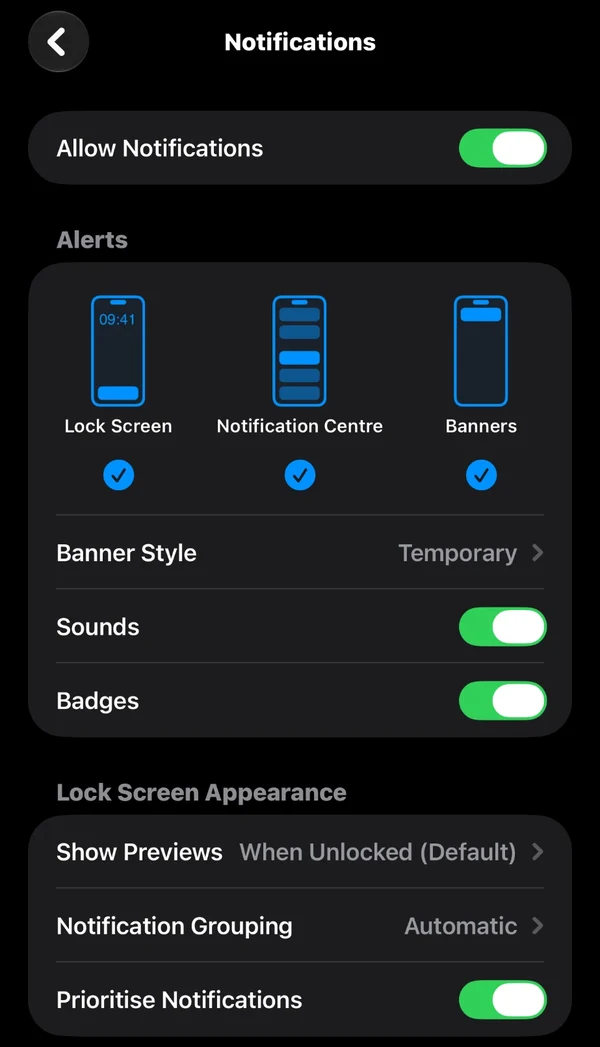
iPhone notification settings for Discord with Allow Notifications, Sounds and Badges turned on
iPhone: Settings → Notifications → Discord
2
Desktop only · on mobile? Skip this step

Turn on notifications inside Discord

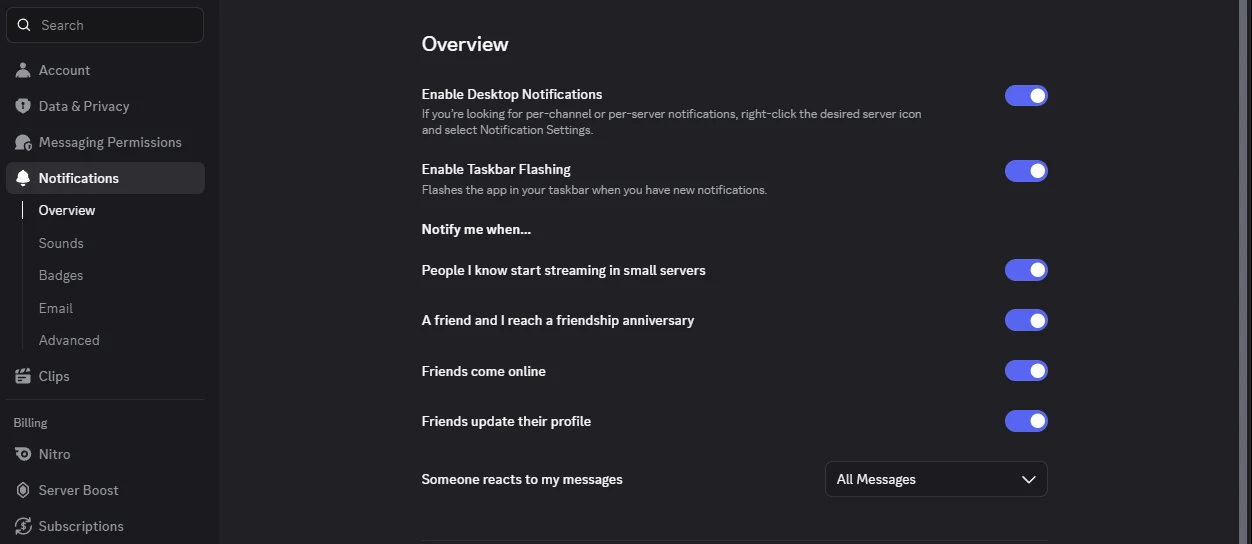
In the Discord desktop app, open User Settings (the cog next to your name) → Notifications.

  1. Under Overview, turn on Enable Desktop Notifications.
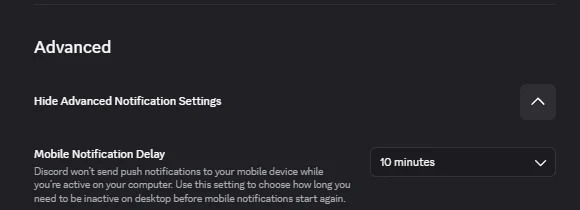
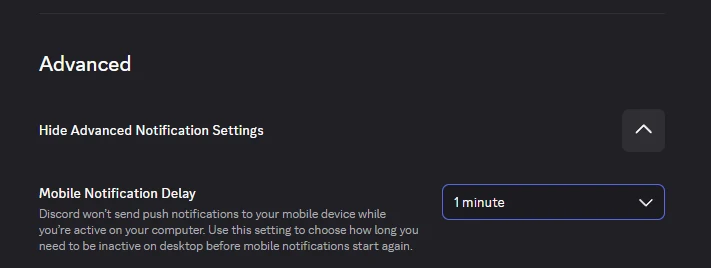
  2. Go to Advanced, click Show Advanced Notification Settings, and set Mobile Notification Delay to 1 minute. This way your phone still pings you if you leave your computer on and walk away.
Discord · User Settings · Notifications · Overview
Discord desktop notification settings with Enable Desktop Notifications turned on
DefaultMobile Notification Delay set to 10 minutes
10 minutes: your phone stays quiet for 10 minutes after you leave your computer.
Set it to thisMobile Notification Delay set to 1 minute
1 minute: your phone takes over almost straight away.
Part 2

Set up the PokePings server

3

Set server notifications to “Only @mentions”

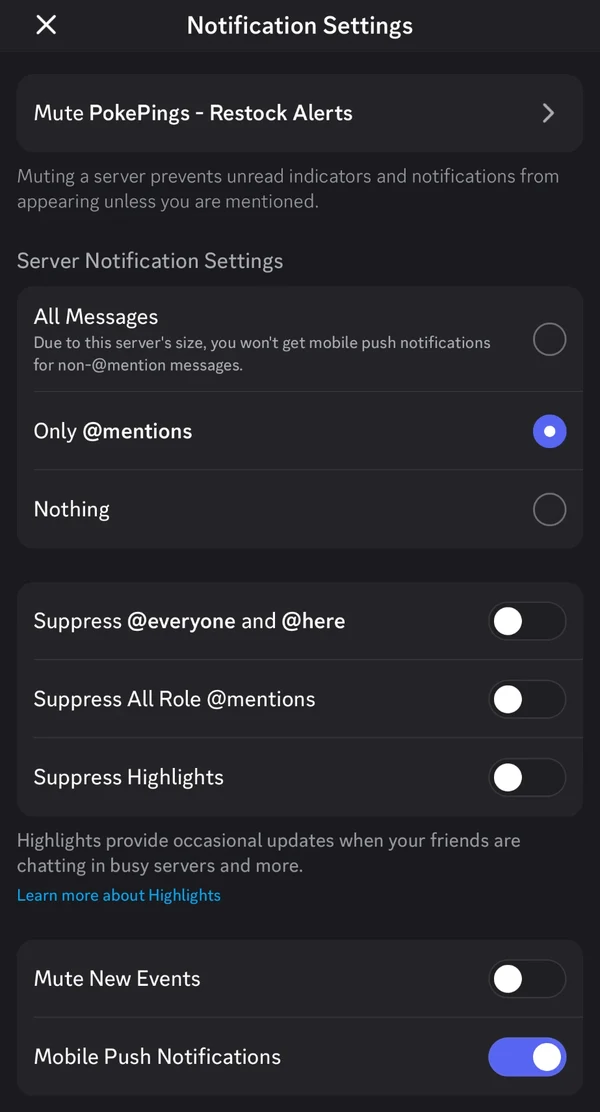
Right-click the PokePings server icon (long-press on mobile) and open Notification Settings.

  1. Set Server Notification Settings to Only @mentions.
  2. Make sure Suppress @everyone and @here is off.
  3. Make sure Suppress All Role @mentions is off. Restock pings use roles, so this one matters most.
Don't mute the whole server. A muted server won't send you any pings, even for restocks.
Server notification settings set to Only @mentions with suppress toggles off and Mobile Push Notifications on
Only @mentions selected, all three Suppress toggles off, Mobile Push Notifications on
4

Turn on “All Messages” for your key channels

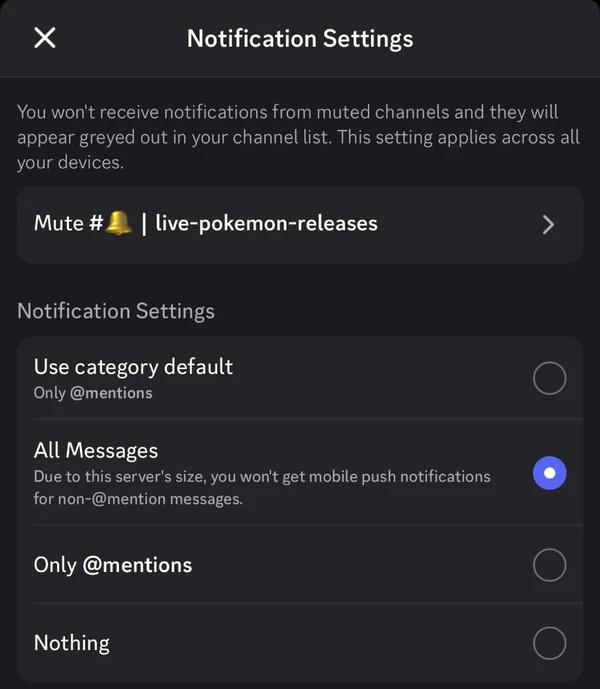
For the monitor channels you care about most (like Pokémon Center or Target), right-click the channel → Notification Settings → All Messages. You'll get a notification for every alert in that channel.

Mute the channels you don't need so the important pings stand out.

Channel notification settings with All Messages selected
A monitor channel set to All Messages
5

Check Do Not Disturb and Focus modes

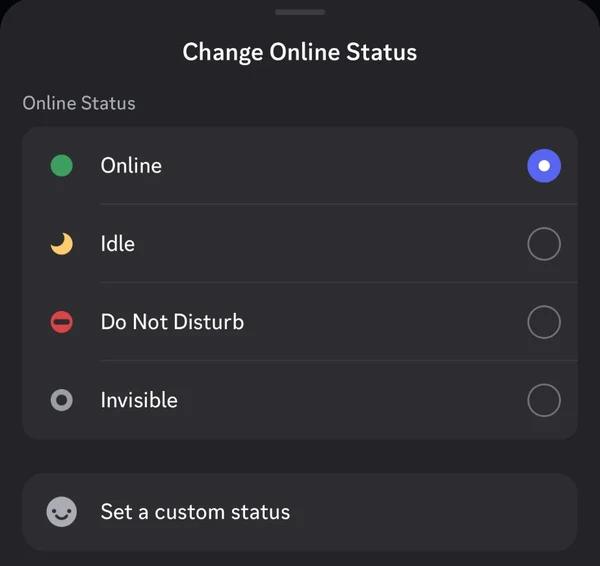
Make sure your Discord status isn't set to Do Not Disturb. It silences every notification.

On iPhone, check that any Focus mode (Sleep, Work, etc.) allows Discord. Otherwise pings arrive silently.

Tip: on Android or PC, give Discord its own notification sound so you know instantly when it's a restock.
Discord Change Online Status menu with Online selected
Tap your profile picture → set status to Online
You're ready for the next restock!Keep Discord installed and logged in, and you'll be pinged the second stock drops.
Help

Troubleshooting

I get pings on my computer but not my phone
Discord sends pings to your computer first while you're active there. Set Mobile Notification Delay to 1 minute in Discord's desktop settings (step 2), or close Discord on your computer when you're away.
My phone shows the ping but makes no sound
Check your phone isn't on silent or in a Focus / Do Not Disturb mode, and that Discord's notification sound is turned on in your phone settings.
Notifications show up late on Android
Android's battery saver can delay apps. Go to Settings → Apps → Discord → Battery and choose Unrestricted (or turn off battery optimization).
I'm getting way too many notifications
Set the server to Only @mentions (step 3), then only use All Messages on the one or two channels you care about most. Mute the rest.
I don't see any monitor channels
You may be missing your region role. Pick US in 🌎┃monitor-region-roles, or follow the setup guide again.

Still stuck?

Open a ticket in 🎟️┃open-a-support-ticket on our Discord and a staff member will sort it out.

Open a ticket